

Web Design | Search Engine Optimisation (SEO) | Google Ads

New Zealand & Australia-wide

  NZ:  | AU:

How to add Web Genius as a Google Business Profile (GBP) owner


If you've already got your Google Business Profile (previously known as Google My Business) up and running, you'll know just how much of a key factor it can be in your business' online visibility. The team at Web Genius are here to help you optimise your listing even further. To do that, we'll need access to your listing.

Below are our easy-to-follow steps on how to add Web Genius to your Google Business Profile. If you have any questions, please do not hesitate to get in touch with our team


STEP 1.

Go to https://business.google.com/


STEP 2.

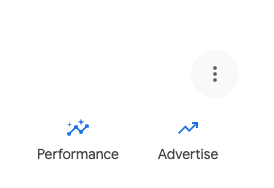
Click Menu (three dots above 'Advertise')

STEP 3.

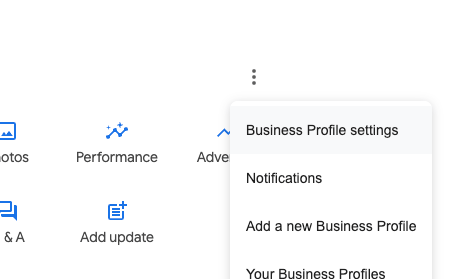
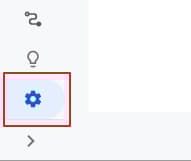
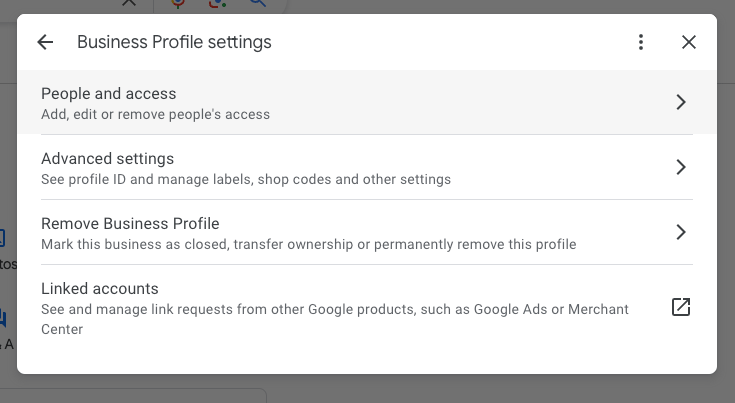
Select > Business Profile settings

STEP 4.

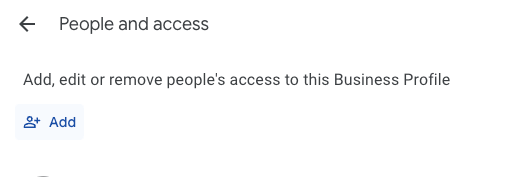
Select > People and access

STEP 5.

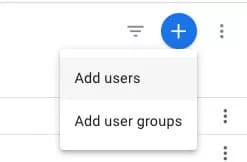
Under 'People and access', click the 'Add' button. Add Users:

STEP 6.

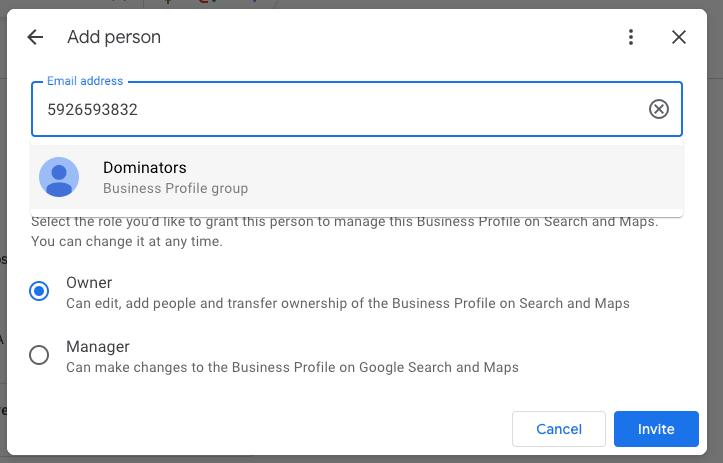
In the email field add the Location ID provided to you by your project manager (can be found in the email you received with the link to these instructions). Select the location group that shows up. This will be relevant to your package purchased with us. Under 'Access', select 'Owner'.

STEP 7.

Select “Invite”

STEP 8.

Select “Done"

Once you have completed steps 1-8 please reply to our initial email to notify us that the invitation has been sent.


If Web Genius has sent a request to manage your Google Business Profile here is how to accept

STEP 1.

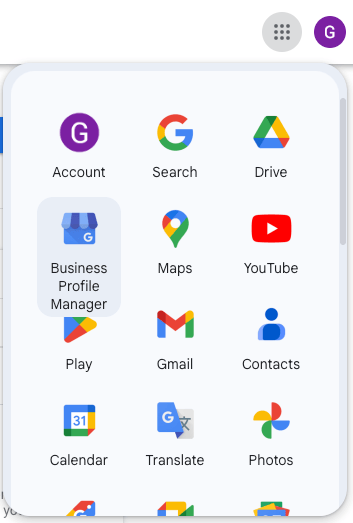
Select > Business Profile Manager in your Google account (under the 9 dot menu in the top right-hand corner of your browser)

STEP 2.

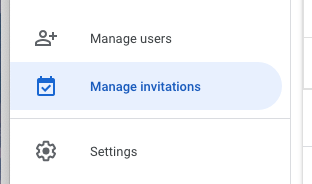
Click Manage invitations. (If you're part of multiple organisations, make sure to choose the right organisation first)

STEP 3.

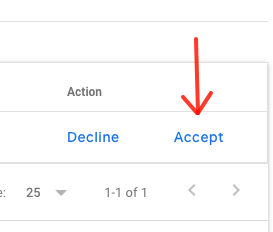
Find the invitation, then click Accept.
Digital Marketing Solutions for Kiwi Businesses
New Zealand & Australia-wide